CONNECTWISE
What is ConnectWise
ConnectWise is a professional services automation (PSA) platform used by MSPs to manage customer products, their associated agreements, and billing. It acts as a centralized system for handling financial transactions such as usage-based charges, quantities, and pricing. Once data is pushed to ConnectWise, invoices are generated and managed directly within the ConnectWise platform.
Why ConnectWise is Integrated with MSP Hub
If MSP Hub partners are existing ConnectWise users, they can integrate ConnectWise with MSP Hub to streamline billing and invoicing. The primary objective of this integration is to push billing transactions from MSP Hub to ConnectWise so that invoices can be generated and managed in ConnectWise instead of within MSP Hub.
Currently, this integration is released as a controlled beta for pilot customers and pilot partners. It is enabled through a feature toggle at the distributor level, and access is provided only to selected partners for testing purposes. The integration supports customer mapping and product/subscription association, reconciliation, and billing synchronization, laying the foundation for future billing automation and scalability.
ConnectWise Integration (Partner)
ConnectWise integration can be performed only by partners within their respective partner tenant. To access PSA-related features, partners must first integrate their ConnectWise account. The PSA Integration menu becomes available only after successful activation of the ConnectWise integration.
Accessing the Integration Setup
- Navigate to My Account.
- Select My Organization.
- Open the Integrations tab.
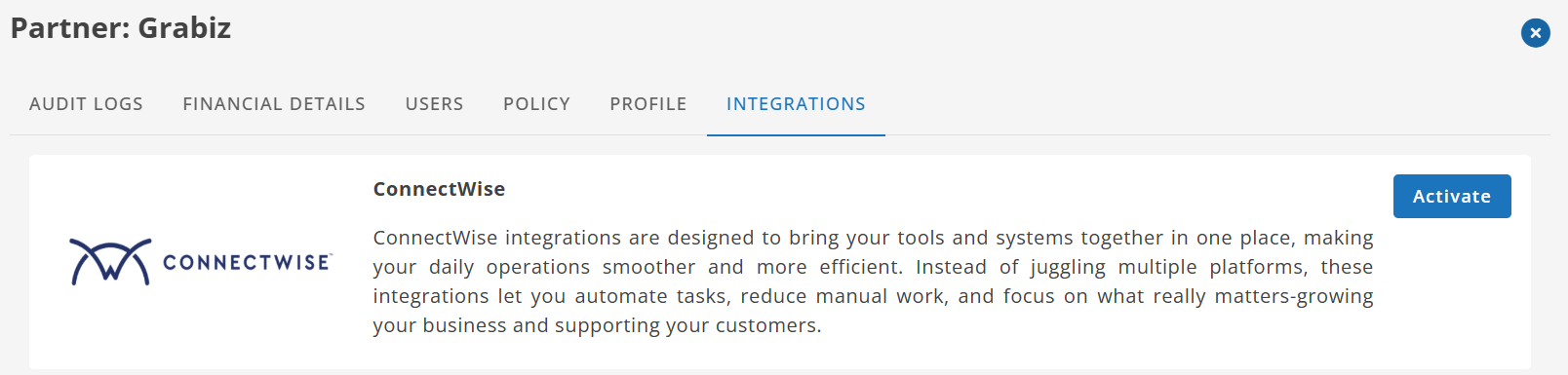
The ConnectWise integration card is displayed under the Integrations section.
Setting Up ConnectWise Integration
- Click Activate on the ConnectWise integration card.
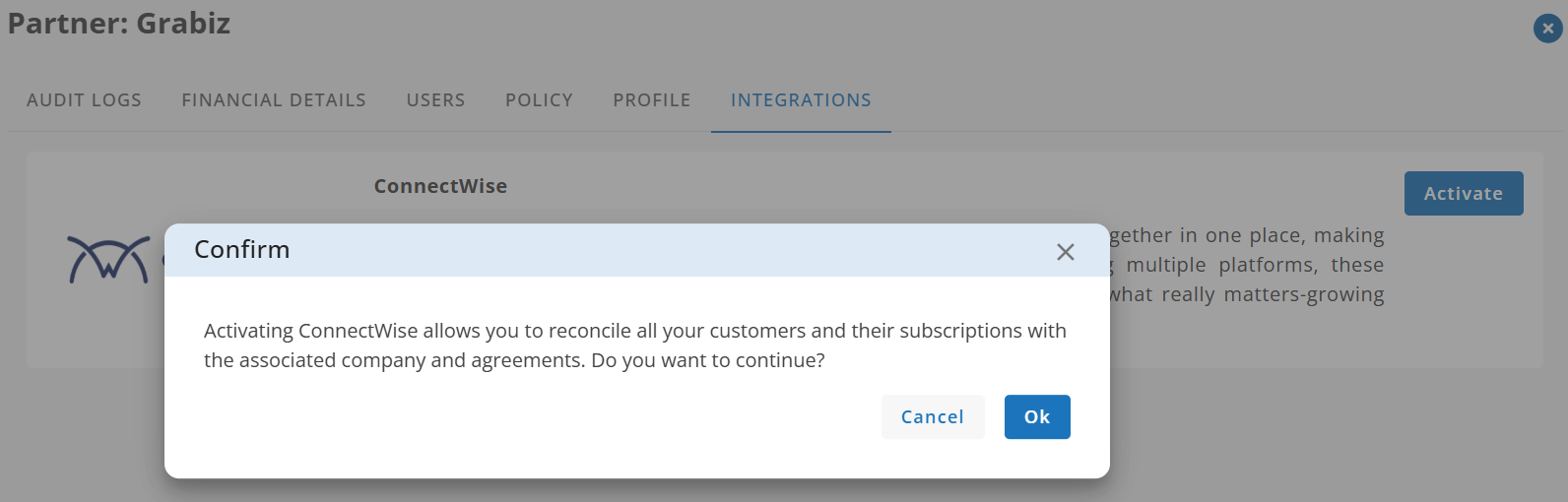
- A confirmation dialog is displayed explaining that activation enables customer and subscription reconciliation with ConnectWise companies and agreements.
- Click OK to proceed.
Entering ConnectWise Integration Details
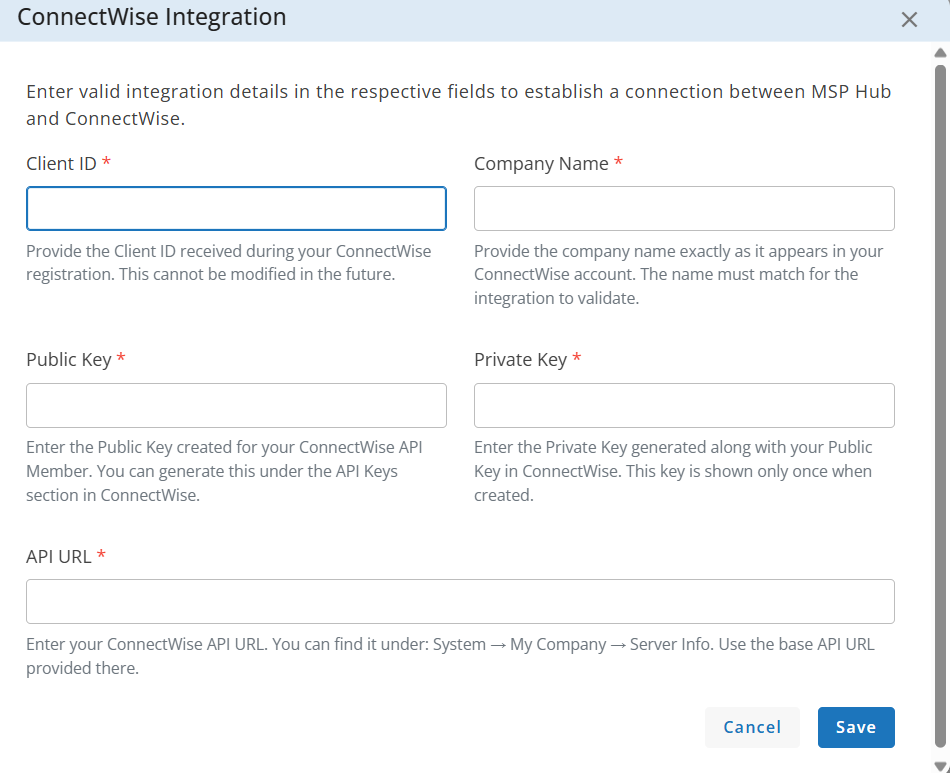
In the ConnectWise Integration window, enter the required details to establish the connection between MSP Hub and ConnectWise:
Client ID Enter the Client ID received during ConnectWise registration. This value cannot be modified later.
Company Name Enter the company name exactly as it appears in the ConnectWise account. The name must match for the integration to validate.
Public Key Enter the Public Key generated for the ConnectWise API Member. This can be created under the API Keys section in ConnectWise.
Private Key Enter the Private Key generated along with the Public Key. This key is displayed only once at the time of creation in ConnectWise.
API URL Enter the base ConnectWise API URL. This can be found under System → My Company → Server Info in ConnectWise.
- Click Save to complete the integration.
Validation Error
If the provided integration details are invalid, the system displays a general validation error message upon saving.
Error Message
Unable to validate ConnectWise integration. Please verify the provided details and try again.
This is a generic message; validation may fail due to one or more incorrect values and is not limited to any specific field.
Integration Status
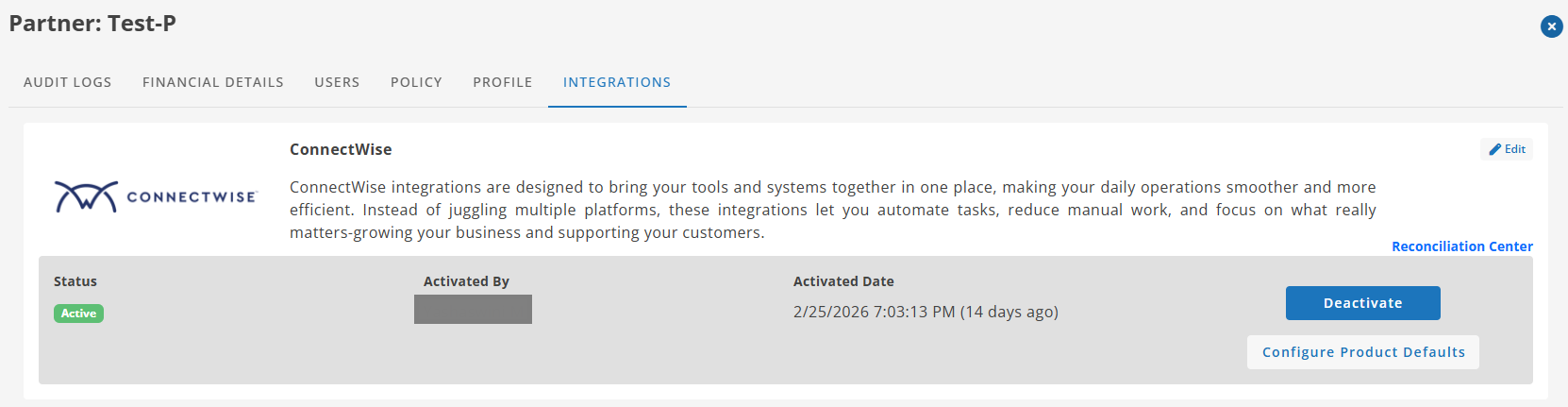
Once the ConnectWise integration is successfully activated, the integration card is updated to display the current status and available actions.
Integration Details
After activation, the following information is displayed:
Status Shows the current integration status. When active, the status is displayed as Active.
Activated By Displays the user who activated the ConnectWise integration.
Activated Date Displays the date and time when the integration was activated.
Available Actions
After activation, the following actions are available:
Edit Allows updating the ConnectWise integration details.
Deactivate Disables the ConnectWise integration. Once deactivated, PSA-related features and billing synchronization are no longer available.
Reconciliation Center Opens the Reconciliation Center, where customers and their products or subscriptions can be associated with the corresponding ConnectWise companies and agreements. This is the primary workspace for managing customer-subscription associations.
Configure Product Default
Once the ConnectWise integration is activated, the Configure Product Defaults option becomes available.
Product Defaults
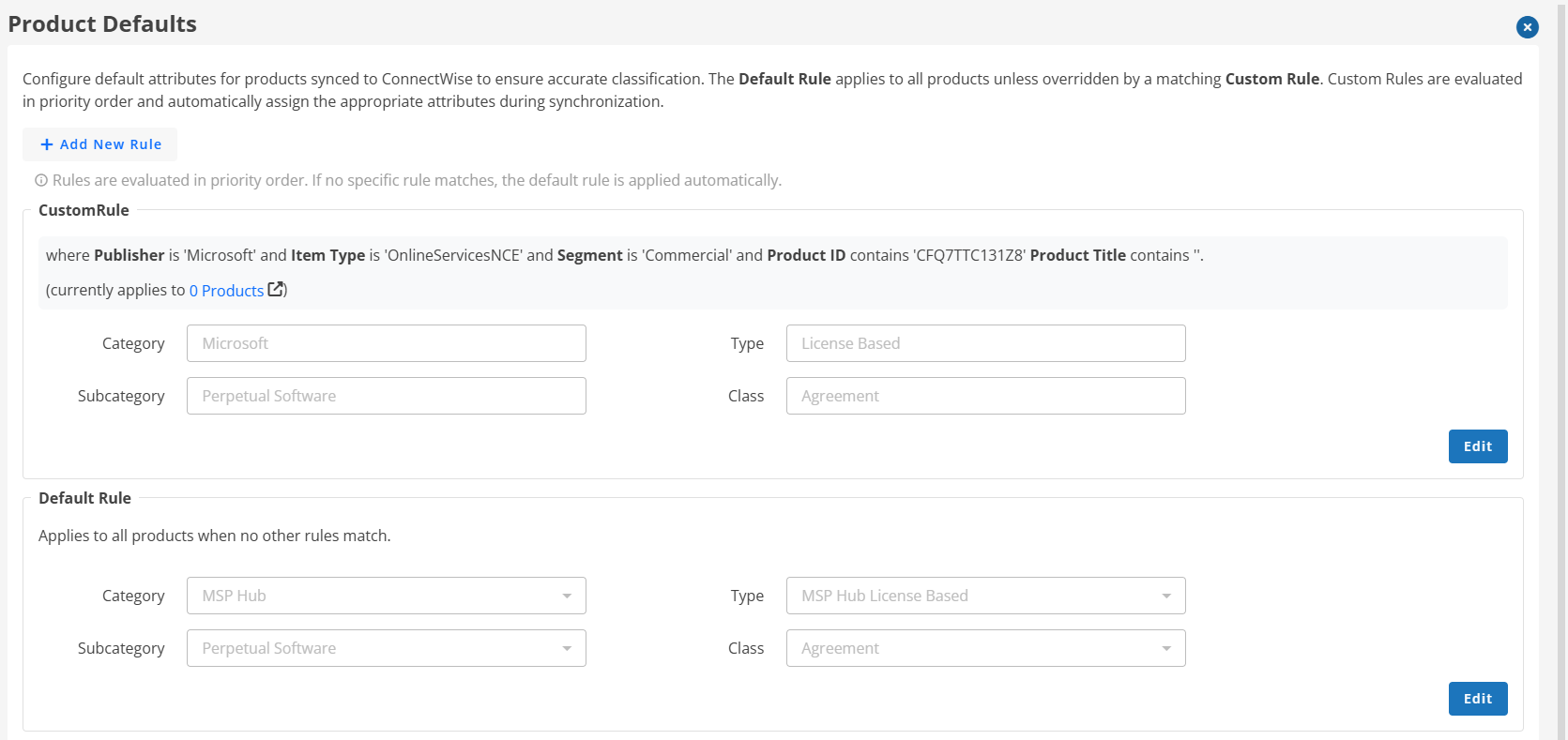
This page allows users to configure default attributes for products synchronized to ConnectWise. These attributes help ensure that products are automatically categorized correctly when they are synced.
- Users can configure default attributes such as Category, Subcategory, Type, and Class for products synced to ConnectWise.
- The Default Rule is applied to all products unless a Custom Rule overrides it.
- Custom Rules are evaluated in priority order, and when a rule condition matches a product, the defined attributes are automatically assigned during synchronization.
This helps avoid manual corrections in ConnectWise after products are synced.
Add New Rule
This button allows users to create a new custom rule.
A custom rule defines
- Conditions (example: Publisher = Microsoft, Item Type = OnlineServicesNCE).
- Attributes to apply (Category, Subcategory, Type, Class).
When a product matches the rule conditions, the configured attributes are automatically assigned.
Rules Evaluation Note
The note below the button explains how rules are processed.
- Rules are checked in priority order.
- The first matching rule is applied.
- If no custom rule matches, the Default Rule is used.
Custom Rule Section
This section displays a configured custom rule.
This means the rule applies only to products matching these conditions.
It also shows:
“Currently applies to 1 Product.”
This indicates how many existing products currently match this rule.
Attributes Applied by This Rule
If a product matches the rule, the following attributes will be assigned:
- Category: Microsoft
- Subcategory: Perpetual Software
- Type: License-Based
- Class: Agreement
These values will automatically populate in ConnectWise during synchronization.
Edit Button
The Edit button allows users to modify:
- Rule conditions
- Category, Subcategory, Type, or Class values
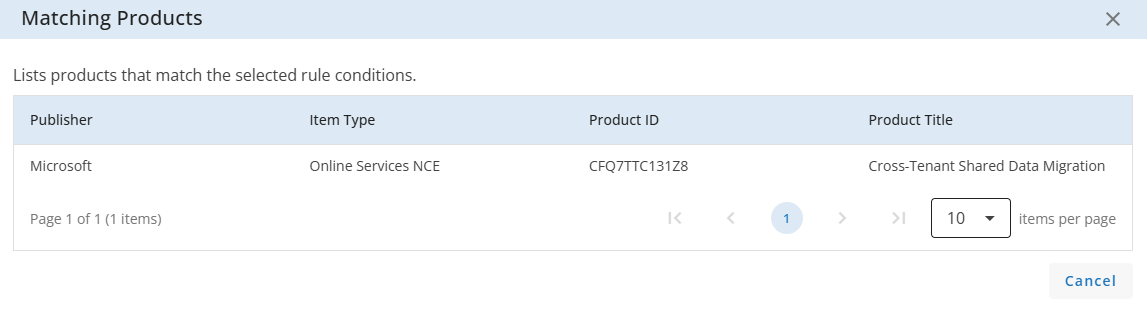
Matching Products
This window displays the list of products that meet the conditions defined in the selected rule. It helps verify which products will be affected when the rule is applied.
The table shows the following details for each matching product:
- Publisher – The product publisher.
- Item Type – The product item classification.
- Product ID – The unique identifier of the product.
- Product Title – The name of the product.
Use this view to confirm that the rule conditions correctly target the intended products before applying or modifying the rule.
Default Rule Section
The Default Rule applies when no custom rule matches a product.
The message states:
- Applies to all products when no other rules match.
This ensures every synced product receives at least a basic classification.
Default Attributes
If no custom rule is matched, these values will be applied:
- Category: MSP Hub
- Subcategory: Perpetual Software
- Type: MSP Hub License-Based
- Class: Agreement
This prevents products from being created in ConnectWise with empty or incorrect attributes.
Edit Button
Users can modify the default attribute values if needed.
Post-Integration
- Once the integration is successfully activated, the PSA Integration menu becomes available.
- Partners can then proceed with associating customers, products, and subscriptions to enable billing synchronization.
- Billing transactions are pushed to ConnectWise, where invoices are generated and managed.
Reconciliation Center
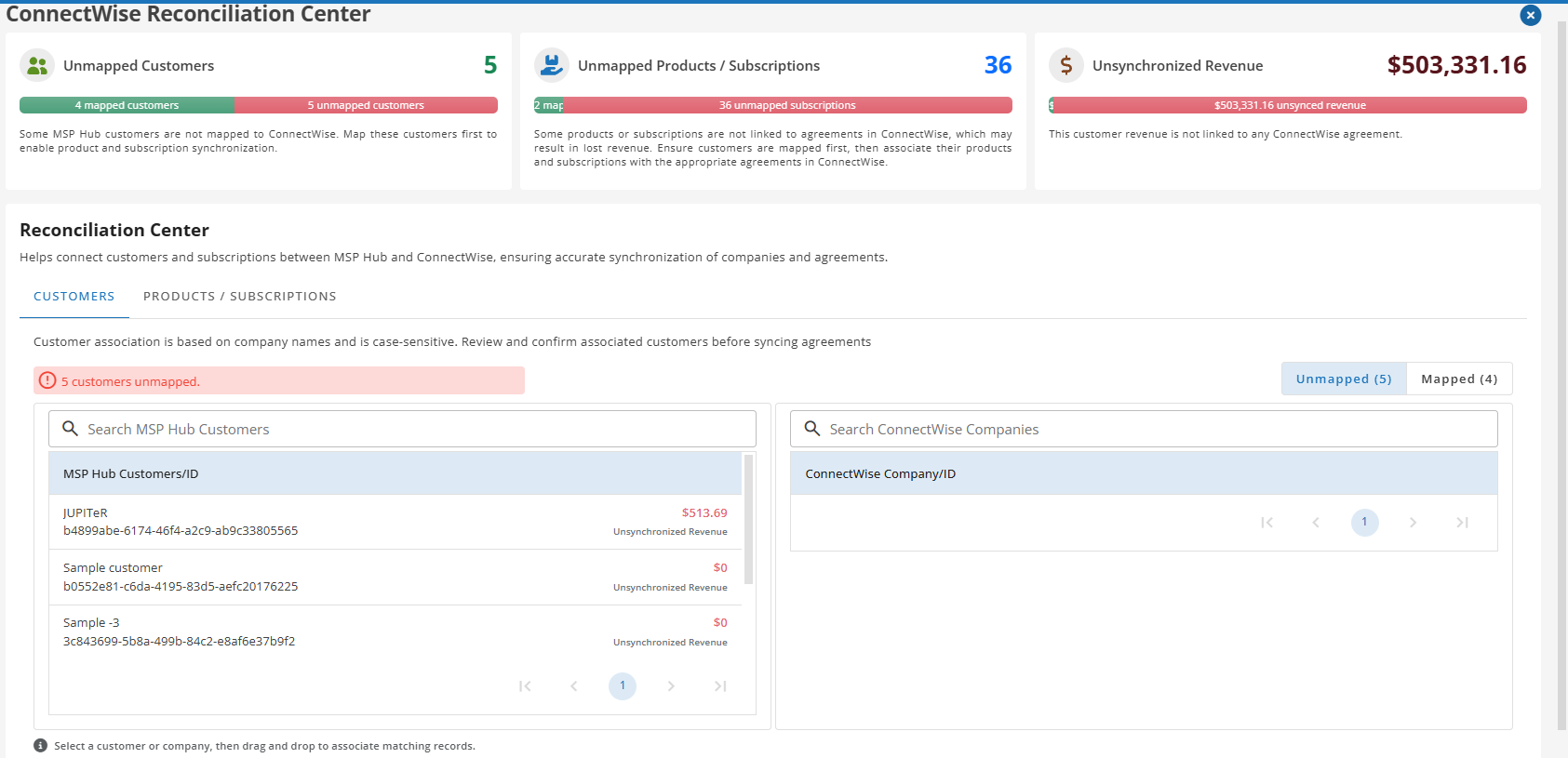
The Reconciliation Center helps align data between MSP Hub and ConnectWise to ensure accurate billing synchronization. It allows partners to associate MSP Hub customers, products, and subscriptions with the corresponding ConnectWise companies and agreements. Any item that is not mapped or synchronized is highlighted to prevent revenue loss.
At the top of the page, summary indicators provide a quick overview of reconciliation status between MSP Hub and ConnectWise:
Unmapped Customers Displays the number of MSP Hub customers that are not yet associated with any ConnectWise company. These customers cannot have their products or subscriptions synchronized until the customer mapping is completed.
Unmapped Products / Subscriptions Shows the count of products or subscriptions that are not linked to a ConnectWise agreement. This typically occurs when the customer is mapped, but their purchased products or active subscriptions are not yet linked to the corresponding agreement in ConnectWise.
Unsynchronized Revenue Displays the total revenue amount from products or subscriptions that are not linked to any ConnectWise agreement. This revenue is excluded from invoice generation until the required mappings are completed.
These indicators help partners identify missing associations and prioritize reconciliation actions before billing transactions are synchronized with ConnectWise.
Customers
A customer represents an organization created in MSP Hub. For billing synchronization to work, each MSP Hub customer must be associated with a corresponding ConnectWise company. Customer mapping is the first and mandatory step before products or subscriptions can be linked to agreements.
Customer association is typically based on matching company names in MSP Hub and ConnectWise. Accurate name matching helps ensure correct association. Customers that are not mapped are shown under the Unmapped view, along with their unsynchronized revenue.
Unmapped Customers
The Unmapped tab lists MSP Hub customers that are not yet associated with a ConnectWise company. Customers in this state cannot have their products or subscriptions synchronized, and any related revenue remains unsynchronized.
Mapping an Unmapped Customer
To map a customer:
- Select a customer from the MSP Hub Customers list.
- Select the corresponding company from the ConnectWise Companies list.
- Drag and drop to associate the selected records.
Once mapped:
- The customer moves to the Mapped tab.
- The customer becomes eligible for the product and subscription association.
- Billing data can be synchronized with ConnectWise.
Note
Customer association is based on company name matching and is case-sensitive.
Mapped Customers
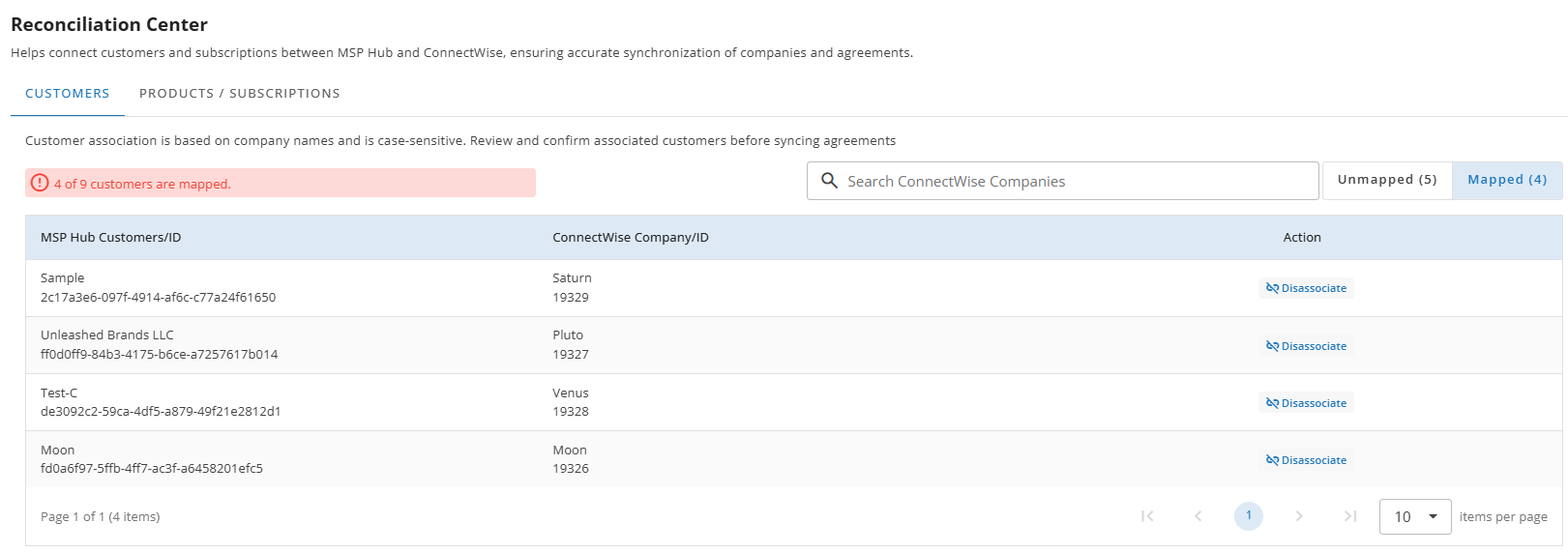
The Mapped tab displays MSP Hub customers that are already associated with ConnectWise companies. These customers are eligible for product and subscription mapping and billing synchronization.
Disassociate Customer
The Disassociate action removes the existing association between an MSP Hub customer and a ConnectWise company.
- Click Disassociate for the required customer.
- Confirm the action in the confirmation dialog.
After Disassociation
- The customer is moved back to the Unmapped tab.
- Any associated products or subscriptions are no longer synchronized.
- Billing transactions for the customer are not pushed to ConnectWise until the customer is mapped again.
Products / Subscriptions
The Products / Subscriptions tab is used to associate customer products and subscriptions in MSP Hub with the corresponding ConnectWise agreements. This ensures that quantities, pricing, and billing periods are correctly synchronized for invoice generation in ConnectWise.
The system attempts to automatically associate subscriptions with available agreements in ConnectWise. Any subscriptions that are not associated or require changes to existing associations are managed from this page.
Subscription Mapping Overview
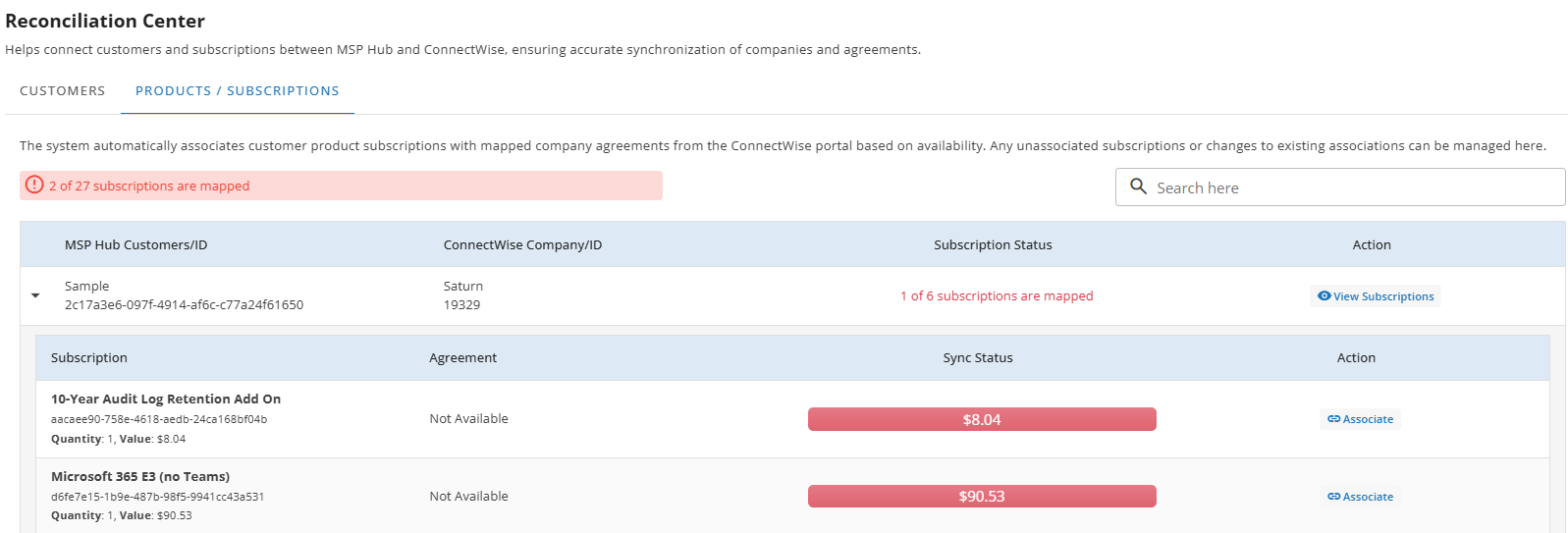
At the top of the page, a summary message displays the number of subscriptions that are currently mapped. This helps quickly identify customers with pending subscription mappings that may result in unsynchronized revenue.
Each row represents a mapped customer and shows:
- The MSP Hub customer
- The associated ConnectWise company
- The current subscription mapping status
Viewing Customer Subscriptions
- Click View Subscriptions for a customer.
- The system expands the row to display all products and subscriptions purchased by the selected customer.
For each subscription, the following details are shown:
- Subscription name
- Quantity and value
- Agreement status (mapped or not available)
- Sync status, indicating whether the subscription revenue is synchronized
Subscriptions that are not mapped to any agreement are highlighted, indicating unsynchronized revenue.
Associating a Subscription
To associate a product or subscription with a ConnectWise agreement:
- Click Associate for the required subscription.
- The Create Subscription Mapping page opens.
- Select the appropriate ConnectWise agreement for the subscription.
- Confirm the association.
Create Subscriptions Mapping
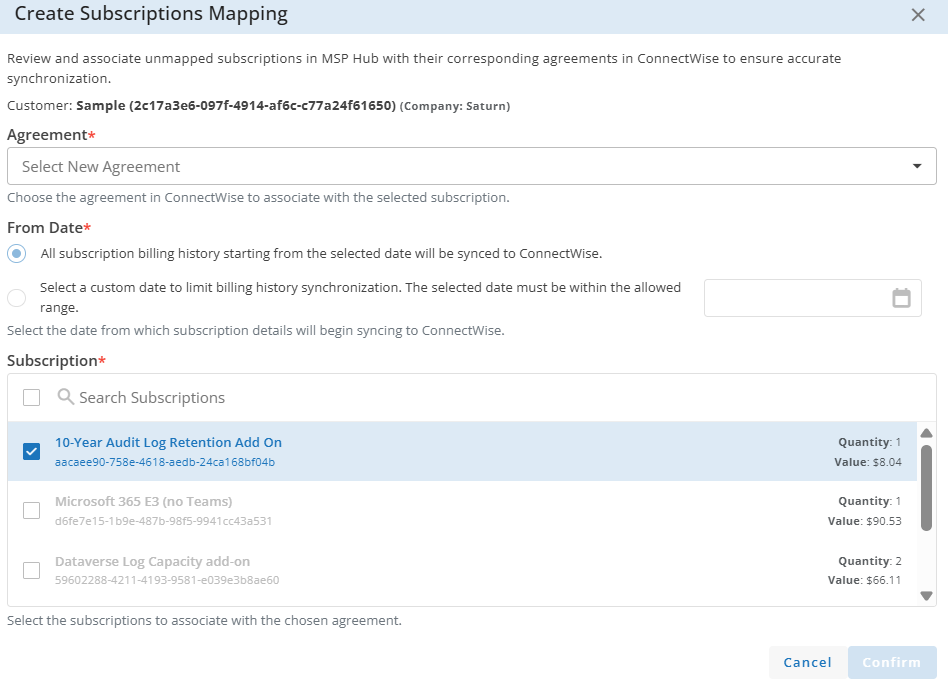
This pop-up appears when you click Associate to map unmapped subscriptions in MSP Hub with the corresponding ConnectWise agreements. Mapping ensures that subscription charges and billing history are accurately synchronized with ConnectWise. Only mapped subscriptions are eligible for billing synchronization.
Customer Displays the customer name, unique customer ID, and the associated company name. This confirms which customers’ subscriptions are being mapped.
Agreement Use this dropdown to select the ConnectWise agreement that should be linked to the selected subscription(s).
Only one agreement can be chosen, and all selected subscriptions will be associated with this agreement.
From Date
Defines from which date the subscription billing data should start syncing to ConnectWise.
You can choose one of the following options:
All subscription billing history starting from the selected date will be synced to ConnectWise Syncs all billing records from the chosen start date onward.
Select a custom date to limit billing history synchronization Allows you to pick a specific date to restrict how much historical billing data is synchronized. The selected date must fall within the allowed range.
This helps control whether full or partial billing history is pushed to ConnectWise.
Subscription
Lists all unmapped subscriptions available for the selected customer.
Each subscription entry shows:
- Subscription name
- Subscription ID
- Quantity purchased
- Subscription value
You can:
- Use the Search Subscriptions field to quickly find a subscription.
- Select one or multiple subscriptions to associate them with the chosen ConnectWise agreement.
Action Buttons
- Cancel: Closes the popup without saving any changes.
- Confirm: Associates the selected subscriptions with the chosen ConnectWise agreement and applies the selected billing sync date.
Once associated:
- The subscription is linked to the selected ConnectWise agreement.
- The subscription status is updated as mapped.
- Billing data for the subscription becomes eligible for synchronization and invoice generation in ConnectWise.
Change Subscription Mapping
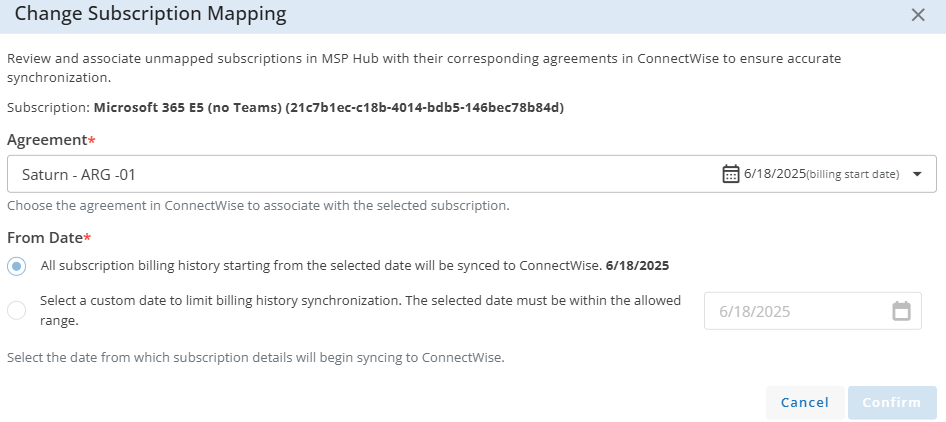
This pop-up appears when an already associated subscription needs to be re-mapped to a different ConnectWise agreement or when the billing sync start date needs to be updated.
Subscription Displays the subscription name along with its unique subscription ID. This confirms which existing subscription mapping is being modified.
Agreement Shows the currently associated ConnectWise agreement. You can select a different agreement from the dropdown to update the mapping.
The billing start date of the selected agreement is also displayed to provide context before making changes.
From Date
Defines from which date the subscription billing history will be synchronized to ConnectWise after the mapping change.
You can choose one of the following options:
All subscription billing history starting from the selected date will be synced to ConnectWise By default, the sync begins from the agreement’s billing start date.
Select a custom date to limit billing history Allows you to specify a different date to restrict billing history synchronization. The selected date must fall within the allowed range.
This ensures control over how much historical billing data is resent after updating the mapping.
Action Buttons
- Cancel: Closes the popup without applying any changes.
- Confirm: Saves the updated agreement and billing sync date for the selected subscription.
FAQ
1. Who can access the ConnectWise integration?
The ConnectWise integration is available to partner tenants. It is currently released as a controlled beta and is enabled only for selected pilot partners through a distributor-level feature toggle.
2. When does the PSA Integration menu appear?
The PSA Integration menu appears only after the ConnectWise integration is successfully activated from My Account → My Organization → Integrations.
3. What is the primary purpose of integrating ConnectWise?
The primary purpose of the integration is billing synchronization. MSP Hub pushes billing transactions to ConnectWise so that invoices are generated and managed in ConnectWise.
4. Is customer mapping mandatory?
Yes. Customer mapping is mandatory.
Products or subscriptions cannot be synchronized unless the MSP Hub customer is first associated with a corresponding ConnectWise company.
5. What happens if a customer is not mapped?
If a customer is not mapped:
- Products and subscriptions cannot be associated
- Revenue remains unsynchronized
- Billing transactions are not pushed to ConnectWise
6. What does the “From Date” control do?
The From Date determines when subscription billing data is synchronized to ConnectWise.
It allows you to:
- Sync all billing history from a selected date, or
- Limit synchronization to a specific period
7. Does MSP Hub generate invoices after integration?
No. After integration, invoices are generated and managed only in ConnectWise. MSP Hub’s role is limited to pushing billing transactions.